
Subtitles
The Subtitles editor is where you turn a recitation into timed Arabic subtitles. It pairs a text selection panel with the timeline, so you can match each recited word to its exact moment — manually, or with AI Segmentation.
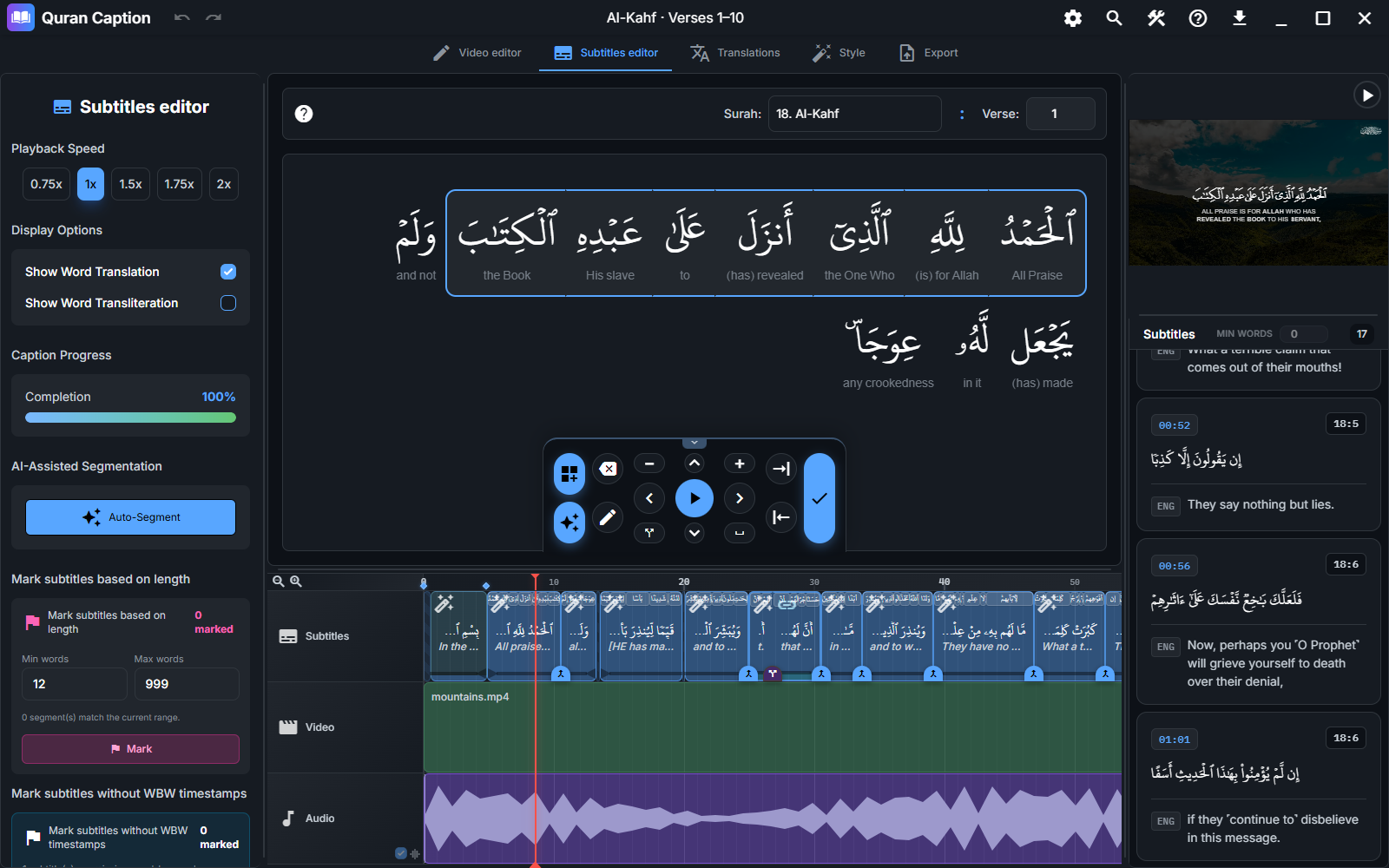
Captioning manually
First add the recitation to the audio track and select its starting surah and verse. The manual workflow is a loop of three actions:
- Play the recitation — press Space.
- Select the words as they are recited — ↑ selects the next word, ↓ deselects the previous one.
- Add the subtitle — press Enter when the selected words have been recited.
Each subtitle starts where the previous one ended and ends at the current playhead, so your captions stay seamless with no gaps.
Selecting the text
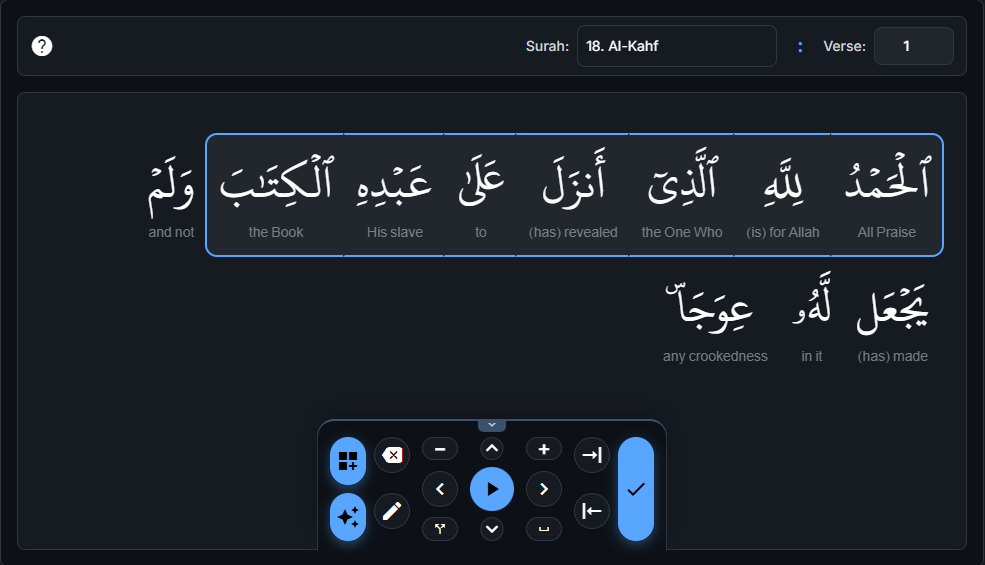
In the text selection panel, choose the surah and the current verse that matches your recitation. The Arabic text appears word by word, ready to be selected as the recitation plays.
You can also insert common predefined phrases as subtitles:
- Basmala — B
- Isti‘adhah — A
- Add silence — S inserts a silent gap in the timeline.
- Amin, Takbir, Tahmeed, Tasleem, and Sadaqa are also available (configurable shortcuts).
Keyboard shortcuts
Video preview
- → — move forward 2 seconds.
- ← — move backward 2 seconds.
- Space — play / pause.
- PgUp / PgDn — toggle speed between 1× and 2×.
- F11 — toggle fullscreen.
- I — go to the start.
Subtitles editor
- ↑ / ↓ — select the next / previous word.
- V — select all words in the verse.
- R — reset the start cursor to the end cursor.
- C / X — move the end cursor to the next / previous punctuation.
- Enter — add a subtitle with the selected words.
- Backspace — remove the last subtitle.
- E — edit the subtitle at the playhead; hold it to open word-by-word timing editing.
- S — add silence.
- M / N — set the subtitle end / start time.
- T — add a custom text clip.
- D — split the subtitle at the cursor.
- W — refetch word-by-word timestamps.
- Delete — delete the clip under the cursor.
These are the default shortcuts; change them in Settings → Shortcuts. Click outside text and number fields before using an editing shortcut. Here, “at the cursor” means at the timeline playhead, not under the mouse pointer.
Word-by-word (WBW) timestamps
Word-by-word timestamps store the exact timing of each word. They enable word-by-word editing and precise splitting, and they are required by the word-by-word visual effects in the Style editor.
You can add them in two ways:
- Automatically — the cloud aligner includes them by default. For a local method, enable Include word-by-word timestamps when that option is available in AI Segmentation.
- Edit or recalculate — place the playhead inside a Quran subtitle and hold E to edit its word timings. Press W to request automatic realignment for that subtitle.
Splitting & cleaning up
The Subtitles editor includes tools to keep your captions tidy:
- Split long subtitles — use existing word timings to split subtitles that exceed a word or duration limit, optionally only at stop signs.
- AI split — let your AI provider choose natural Arabic chunk boundaries.
- Mark subtitles based on length — highlight subtitles within a chosen minimum and maximum word count.
- Mark missing WBW — flag subtitles without word-by-word timestamps.
Review
After captioning (or AI segmentation), use Segments to review to jump between flagged subtitles — low-confidence, coverage issues, long segments, or missing word timings — and verify each one.
Display options
- Show word translation — show an English meaning under each Arabic word.
- Show word transliteration — show a pronunciation guide.
- Caption progress — track how much of the recitation is captioned.
- Playback speed — slow down or speed up while captioning.
What’s next?
With subtitles in place, add translations in the Translations tab.