
Media & Assets
Assets are the raw material of your project — audio recitations, background videos, and images. The Video editor tab is where you import them, download them, and place them on the timeline.
The Video editor
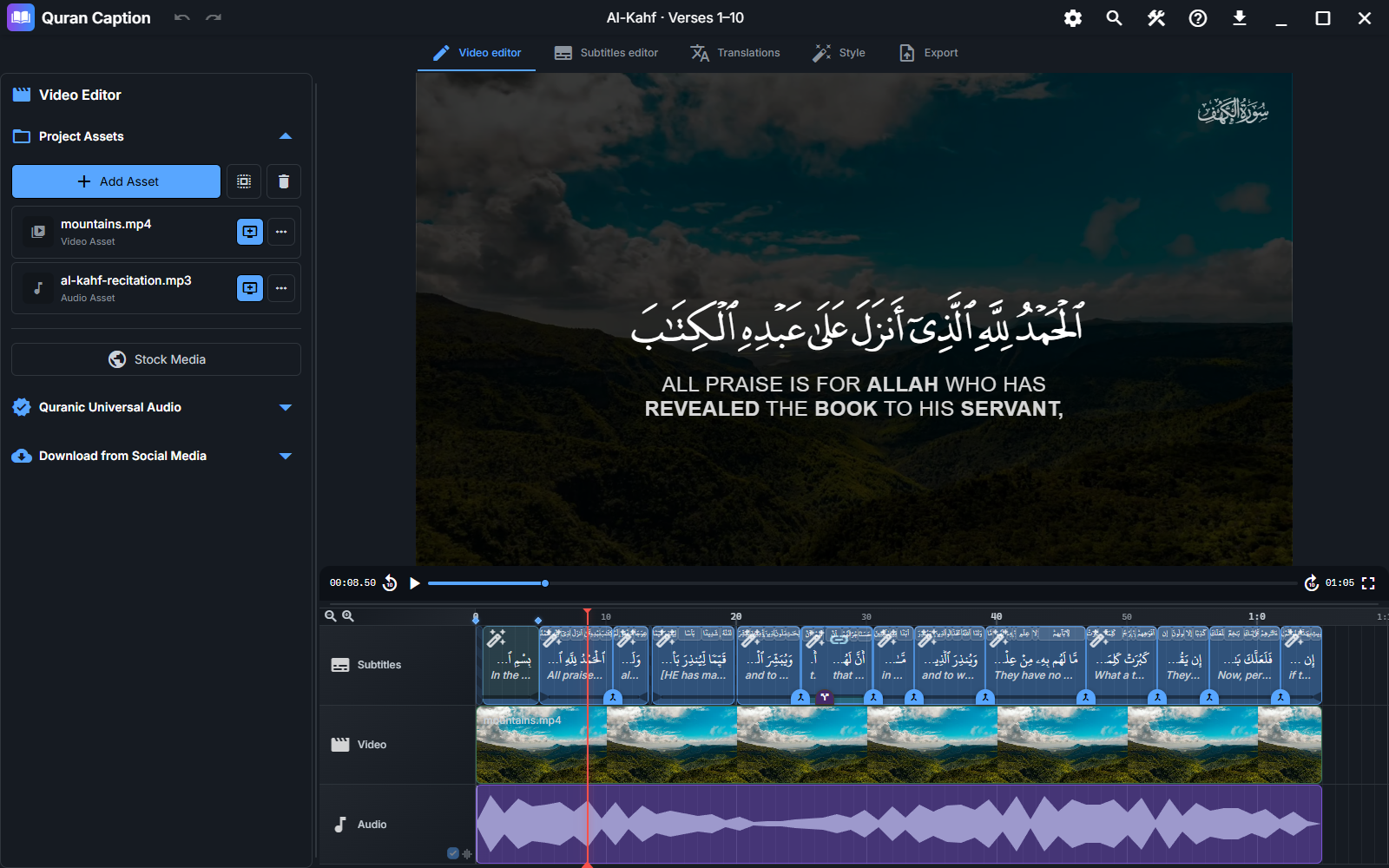
The Video editor is split into three areas: the Project Assets panel on the left, the video preview in the center, and the timeline at the bottom.
Importing assets
To import media from your computer:
- Click Add Asset in the Project Assets panel, or
- Drag and drop files directly into the panel.
Audio, video, and image files are supported. Importing a local file adds it to the asset list; use its Add to Timeline button to make it part of the video. Local imports reference the original file, so keep it available on disk.
Asset actions
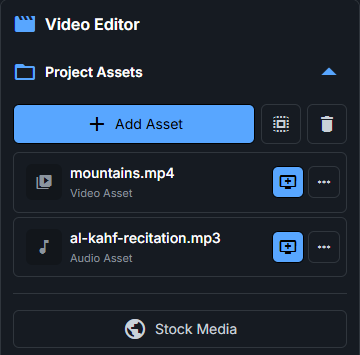
Use the timeline button to add an asset, and its three-dot menu for file actions. Available actions depend on the media type and whether the file is still available:
- Add to Timeline — place the asset on the timeline as Video & Audio, Video only, Audio only, or Set as Background.
- Open Directory — open the folder that contains the file.
- Trim — create a trimmed audio or video copy without changing the original file.
- Relocate — point to a new location when a file has moved.
- Re-download — recover a missing file when its original download source is supported.
- Remove — remove the asset from the project (optionally also delete it from disk).
Download from a link
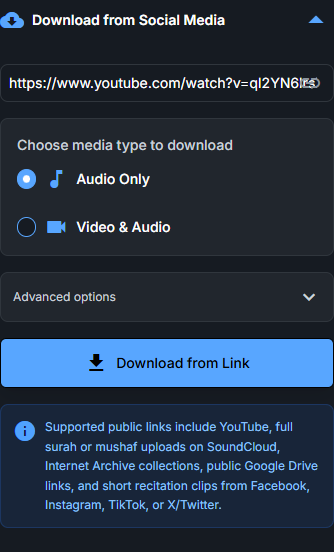
You can import media from a public URL without leaving the app. Paste a link to a YouTube video, a SoundCloud recitation, an Internet Archive collection, a public Google Drive file, or a short clip from Facebook, Instagram, TikTok, or X/Twitter.
When downloading, you can choose:
- The media type: Audio Only or Video & Audio.
- A time range to keep only part of the media, under Advanced options.
- The audio bitrate and maximum video quality.
- Cleaner video cuts — re-encodes the video to reduce artifacts at the cuts (takes longer).
Download Quran recitations
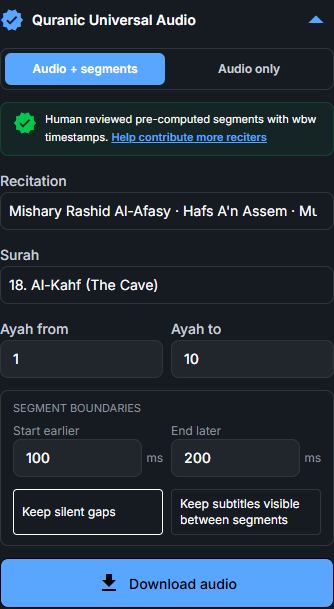
Recitations are downloaded from Quran Universal Audio (QUA), a collection of recitations maintained by QUD-Technologies. In the Quranic Universal Audio section, choose a mode, a Recitation (reciter, riwayah, and source), and a Surah.
Audio + segments downloads the selected ayah range and applies human-reviewed, pre-computed subtitles with word-by-word timestamps. You can adjust the segment boundaries and choose whether to keep silent gaps. Audio only offers a wider catalogue and downloads the full surah without creating subtitles. Both modes add the audio to the timeline.
Stock media
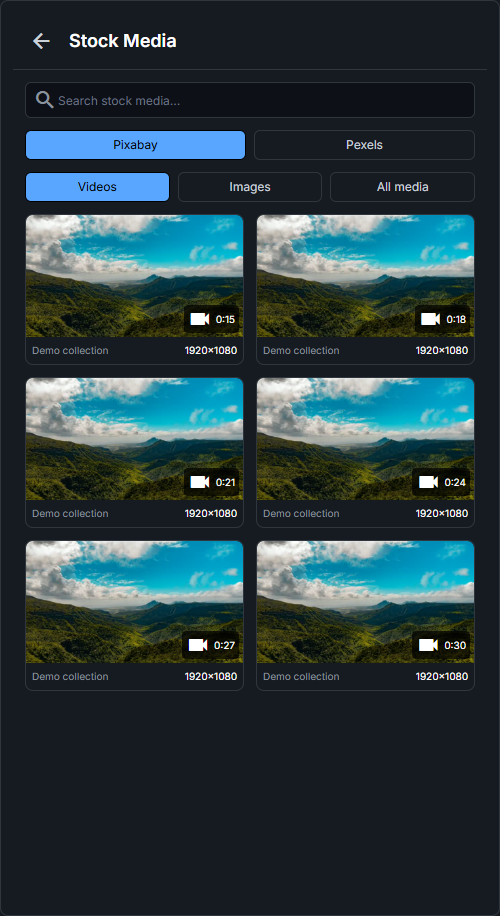
Search free stock images and videos from Pexels and Pixabay directly from the Video editor. Configure the API key for the provider you want to use — see the Settings page for how to configure them.
What’s next?
Once your assets are imported, learn how to arrange them in the Timeline.