
Style
The Style editor controls everything visual: how the Arabic text, the translations, and the surrounding elements look on screen. Start from a ready-made preset, then customize individual settings.
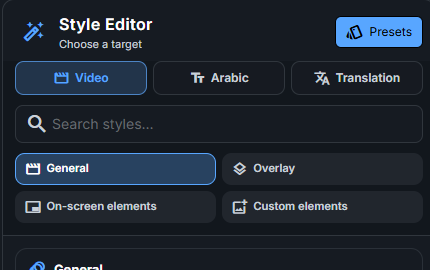
Three targets
The Style editor styles three targets:
- Video — the global video settings: orientation, overlay, reciter name, and on-screen elements.
- Arabic — the Arabic subtitle text: font, size, color, position, and effects.
- Translation — the translation text (choose which edition to style).
Each target is split into panels. For the Arabic and Translation targets, the panels are Text Styling, Position & Layout, Background & Container, Visual Effects, WBW Effect, and Custom CSS.
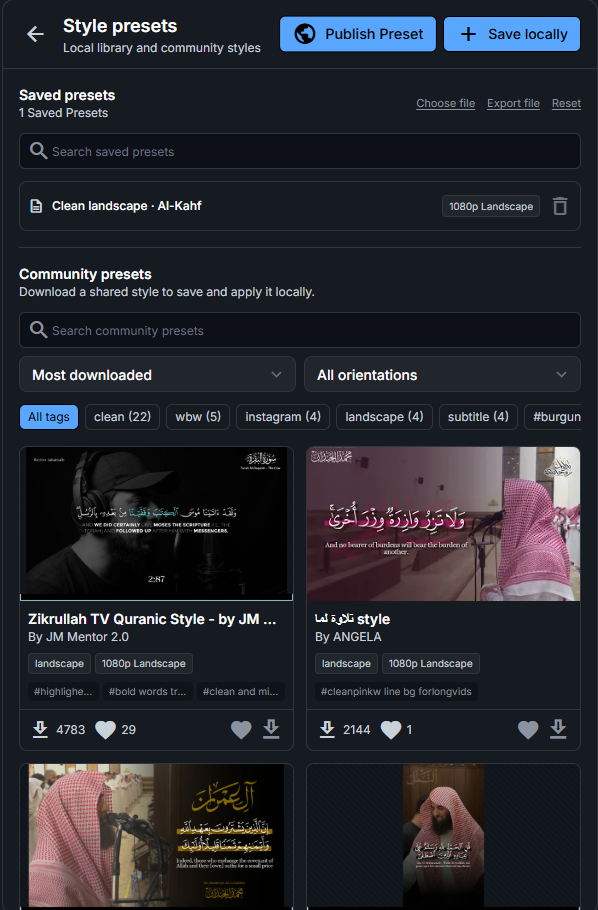
The presets library
Instead of configuring everything by hand, apply a preset — a complete style you can reuse. The library has two sections:
- Community presets — styles shared by other users; download and apply them.
- Saved presets — your own presets, saved locally.
You can also:
- Save your current style as a preset.
- Publish a preset to the community.
- Import / Export a preset as a JSON file.
- Choose what a preset includes, such as styles, custom elements, and bundled fonts.
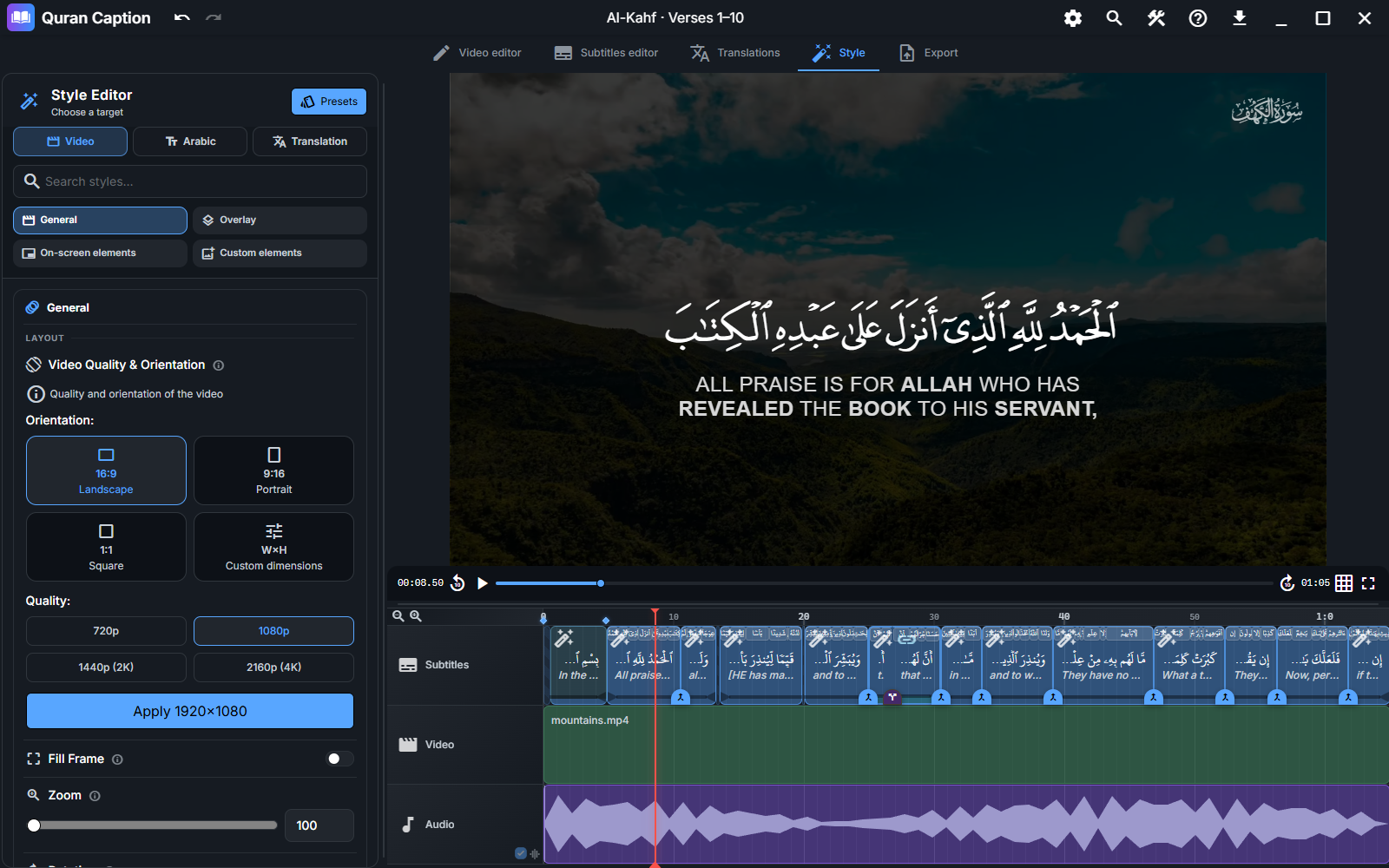
Styling individual subtitles
With no subtitle selected, changes to Arabic or a Translation target apply across the project. To change one subtitle, select it in the timeline, choose the target, and adjust its styles. Local values override the project-wide values. Clear the selection before editing the whole project again; selecting several subtitles applies the changes to that group.
Word-by-word effects
When subtitles have word-by-word timestamps, you can animate the text as it is recited: highlight the current word, show only the word being recited, add a color, underline, or glow, or reveal words progressively. These effects live in the Arabic and Translation targets, under the WBW Effect panel. Translation effects also need word-by-word translation mappings, created in the Translations tab, to follow specific Arabic words.
Keyframes
Controls with a keyframe button let you store values at specific times. Move the playhead, choose a value, and add a keyframe; repeat at another time to define a change. Keyframes follow the current scope: the whole target or the selected clips. The preview animates color, opacity, and visibility transitions; other style fades are rendered in the exported video.
Custom elements
Add your own on-screen content from the Style editor: a custom text or a custom image, each with its own position, timing, and appearance.
What’s next?
When your video looks right, export it — see Export.