
Batch processing
A batch lets you apply the same workflow to many projects at once: import their media, run AI Segmentation, add translations, apply a style, and export them together.
Creating a batch
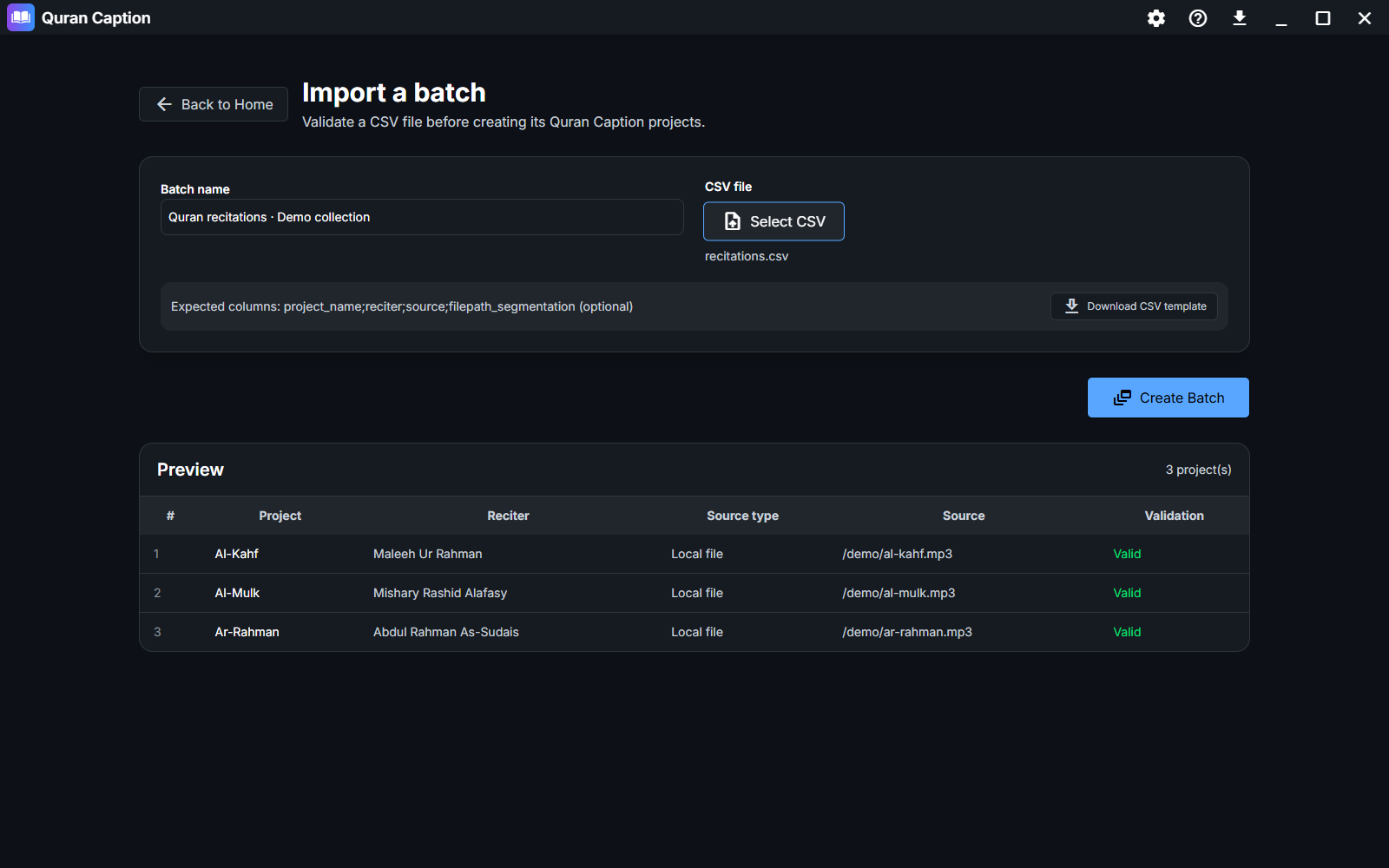
Click New Batch on the home screen, enter a batch name, and import a CSV file that lists each project. Use a UTF-8 file with semicolons as separators and these column names in this order:
project_name;reciter;source;filepath_segmentationproject_name— the name of the project.reciter— the reciter.source— a URL or a local file path.filepath_segmentation— (optional) a pre-computed AI segmentation JSON file.
The fourth column may be omitted, or left empty for projects without a segmentation file. Use full paths for local files. You can download a CSV template, and each row is validated before the batch is created — errors are reported line by line.
The batch stages
A batch progresses through three stages, shown as columns in the workspace:
- Media — download or import each project’s media, as audio only or audio & video.
- AI Segmentation — run segmentation on all projects, then review the flagged ones.
- Translations — add translations to the projects.
Additional actions
Select the projects you want to process before running workspace actions. The workspace also offers:
- AI Split Long Subtitles — split long subtitles across the batch.
- AI Trim Translations — trim translations across the batch.
- Set background — apply an image or video background to the selected projects.
- Apply style — apply a saved local preset to the selected projects after confirming that their current styles may be replaced.
- Export — inspect the selected projects, choose an output folder, and export video, subtitles, or YouTube chapters. Video exports use each project’s saved settings; projects that are not ready are listed before you start.
Reviewing flagged projects
After batch segmentation, projects whose subtitles need attention are flagged. You can step through them, review and correct each one, and mark them as verified.
Dissolve or delete
When you are done, you can dissolve the batch (keeping its projects as separate projects) or delete it (deleting its projects too).